
I recently had the opportunity to learn a little bit about software for vision impaired assistance.
First, I’d like to point out that after 11 years of software training, I’ve never needed to help make accommodations like this, which is probably remarkable. That’s why I’m posting about it. I’m just sure that software trainers everywhere will read this and gain some insight…or not. Either way, leave a comment and provide your feedback or experience with any similar accessibility software tools. I’d love to learn more.
Back in 2007, after swearing for years that I’d never give up my IBM and Lenovo Thinkpads, I made the jump to Mac. I would not have had the guts to make the change if Parallels software hadn’t existed as a safety net. If this Mac sucks, I thought, I can always run Windows. Almost a year ago I purchased my second MacBook Pro. I still have my original machine and it’s running like a champ. My two MacBooks have been the most dependable and powerful machines I’ve ever worked on. I won’t say I’ll never go back to a PC, but it’s highly unlikely. I spend 8 to 10 hours a day 5 days a week or more on a computer. For me, the Macs are definitely worth the extra money. And what’s really cool is that I keep discovering new reasons to love them. But this post isn’t really about how awesome my MacBook is…even though it is.
One of my colleagues who was attending a training conference with me this week is vision impaired and needed a screen magnification tool in order to view the trainer’s screen projection via GoToMeeting. Now, good software training classes don’t lend themselves well to Powerpoint presentations or other media that can be printed and handed out. Good software training classes get your hands dirty, which is why my favorite software trainer in the universe was using a GoToMeeting and recording the sessions. People in class had the option to follow the trainer’s clicks in their own demo/training site, or they could join the web conference and look at the projection on their own laptops. This also gave us the option to accommodate our vision impaired colleague because we could give her a laptop with screen magnification tools to use inside the GoToMeeting window.
To meet the screen magnification need, I looked first to ZoomText by software vendor ai squared. I knew that’s what my vision impaired colleague uses on her own office desktop. So I downloaded the trial version of ZoomText 10 and installed in on my old MacBook on the Windows XP desktop in my Parallels environment (I know, I need to upgrade, but I still like XP). I won’t call this a total failure, but it sure didn’t seem like a feasible solution.
Installing ZoomText took over half an hour. I felt like I had been teleported back in time 15 years. The installation experience was slightly better than clicking a series of 3X5 floppies into a disk slot. After ZoomText 10 was installed on my Windows desktop, I launched it and tried to begin figuring it, only to find that the application seemed to be such a resource hog that I was unable to dedicate enough RAM to the virtual machine (Parallels terminology for your non-OSX operating system) to view anything at all using ZoomText magnification. The navigation worked when I moved my cursor around and the zoom worked to inflate the screen as expected, but the view was full of artifacts and repeating patterns and it just generally felt like the image couldn’t resolve itself. Technically speaking, it was gobbledy-gook. No matter how long I hovered over something with my mouse – image, nav-bar, text, etc, I was unable to make out what it was and certainly unable to decipher the information contained in a web page. So I chalked it up to the Parallels environment in which I installed ZoomText and not the true functionality of the product itself. (I know that my colleague likes the tool on her PC and uses it every day.) But out of curiosity, I looked up the cost of ZoomText and found a hefty price tag – $400 and up for a single license. Ouch.
Aborting my ZoomText mission, I switched to plan B, which was to switch back to my Mac OSX environment and find a similar software application that works there. That’s when I figured out that Mac has a pretty extensive set of built-in accessibility tools. You can find them under the System Settings > “Universal” or “Accessibility” icons, depending on which version of OSX you’re working in. I am running 10.6 (Snow Leopard) on one machine and 10.8 (Mountain Lion) on the other and I found the accessibility tools very similar in both versions of OSX, although a bit simpler to configure in Mountain Lion. The Zoom feature was easy to turn on and figure out how to use. It took about 5 minutes of trial and error with the Zoom settings to get it working the way we needed it to in this situation.
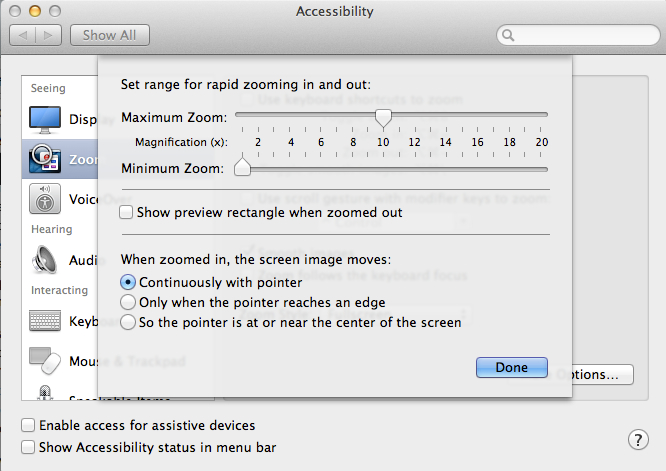
We needed the magnification to follow her mouse cursor – settings shown above.
Although not needed for this occasion, I also tested out the Voice Over feature and found a very thoughtful (and complex) series of keyboard commands to assist people with severely limited or non existent vision, including integration with bluetooth braille display. And in true Mac form, there’s a list of voices you can choose from for your voice-over guide (think “Siri”). Then I did a bit of poking around on the web and found a few forums in which vision impaired users insist that the native Mac tools are as good as the expensive ZoomText software, which seems weird to me because ai squared also makes a version of the ZoomText software to run on a Mac (only for Lion or Mountain Lion; Mavericks is pending release). I also ran across some comparison posts about the native Windows accessibility tools vs. the Mac tools, one of which is included here.
Windows vs Mac in Built-in Magnification
Overview of Accessibility Tools in Mac Lion
Overall, I was surprised at how little content I found about vision assistance software that wasn’t vendor sponsored or composed, which is why I’m taking the time to post about it. It may be unlikely that you’ll need the information, but when you do, it’s really important to get it right. My own conclusion is that I need to just hang on to my old MacBook. Because it’s awesome.
 Lea Remigio
Leave a comment